Help Center
Your Account
Push Notifications
How to enable notifications
Push notifications keep you informed about tasks, tributes, messages, and other important events in real time. Here's how to turn them on.
Step 1: Install the app first
On iOS, push notifications only work when LEASH is installed to your home screen. If you haven't done this yet, see Install the LEASH App first.
On Android, notifications work in the browser too, but the experience is better with the installed app.
Step 2: Allow notifications
When you first open LEASH (or after installing it), you'll see a prompt asking to allow notifications. Tap "Allow".
If you dismissed the prompt previously, you can re-enable notifications:
On iOS (Safari / installed app):
- Open Settings on your device
- Scroll down to Safari (or the LEASH app if installed)
- Tap Notifications
- Toggle notifications on
On Android (Chrome / installed app):
- Open Chrome → tap the three-dot menu → Settings
- Tap Notifications (or Site Settings → Notifications)
- Find LEASH and set it to Allow
What you'll receive
Notifications differ based on your role:
For Slaves
- Task assignments — when a Mistress assigns you a new task
- Task reminders — scheduled reminders for pending tasks
- Messages — when a Mistress sends you a message
- Session invites — when a Mistress invites you to a live session
For Mistresses
- Tributes received — when a slave sends you Roses
- Task completions — when a slave marks a task as done
- Messages — when a slave sends you a message
- New connections — when a slave follows or requests a connection
Managing notifications
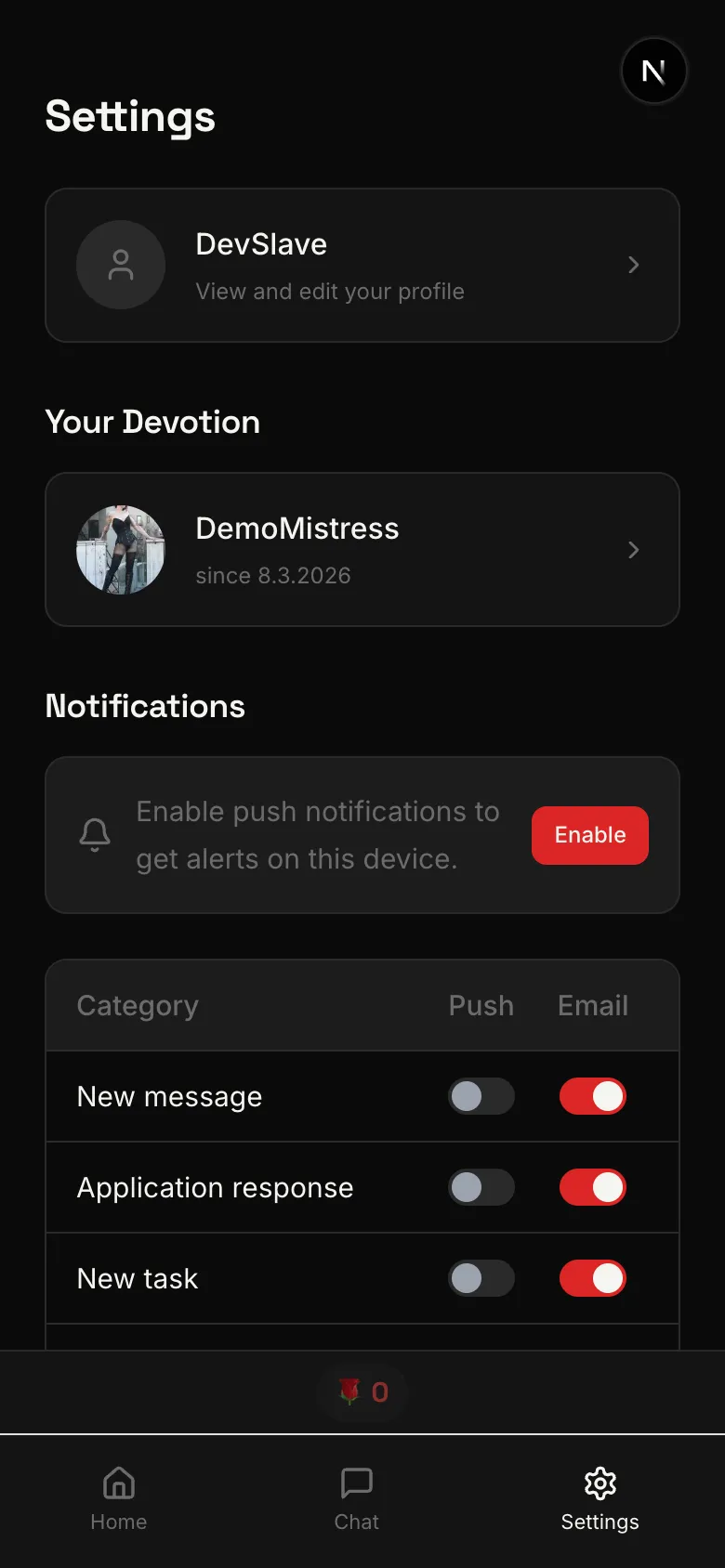
You can control which notifications you receive:
- Go to Settings → Notifications in the app
- Toggle individual notification types on or off
- Changes take effect immediately
Troubleshooting
- Not receiving any notifications? Make sure you've installed the app (required on iOS) and allowed notifications in your device settings.
- Notifications stopped working? Try opening the app once — sometimes the notification subscription needs to be refreshed after an OS update.
- Getting too many notifications? Use the notification settings page to disable types you don't need.
- Notifications appear delayed? This can happen when your device is in power-saving mode. Check your device's battery optimization settings.